To be able to invest in Reental it is necessary create or connect a Wallet and is used to guard your tokens and authorize all transactions in a secure manner.
What wallets can I use?
In Reental you can choose how to connect your external wallet (metamask, rabby... And also switch between different wallets according to your needs.
Available options
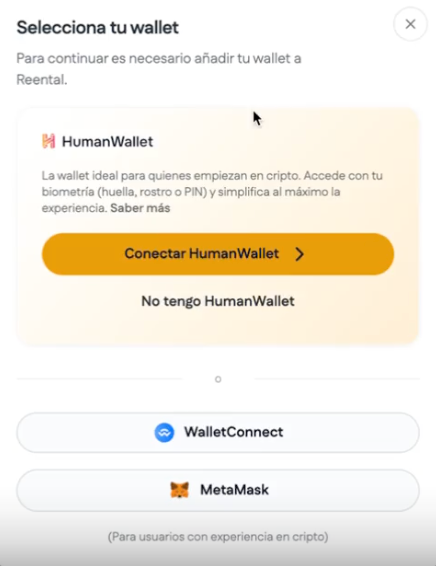
HumanWallet (recommended to start with if you don't have crypto experience)
Wallet integrated with Reental.
Access through biometry.
It doesn't require installing extensions.
Designed for new users or those looking for simplicity.
External wallets
If you're already using an external wallet, you can also connect:
MetaMask
Rabby
Or any compatible wallet using WalletConnect
These options are designed for users with previous crypto experience.
Switch between wallets
You can connect more than one wallet to your Reental account and switch between them when you need it.
For example:
Use HumanWallet to invest in a simple way.
Use a external wallet for advanced operations or external asset management.
At any time you can select which wallet you want to use before carrying out an operation.
Keep in mind
Each wallet works independently
Investments and balances are shown depending on the wallet you have active at that time.
Some functions may require a specific wallet (for example, use as collateral in certain services).
Which one should I use?
If you're starting out in the blockchain environment: HumanWallet.
If you already use crypto regularly: MetaMask or Rabby.
If you want flexibility: Use both and alternate between them.
In this guide, we explain How to create and connect a HumanWallet step by step, whether you already have one, or if it's your first time.
🎥 Tutorial video We recommend that you follow this guide along with the video: 👉 [Video: How to create or connect your Human Wallet in Reental]
Access to Reental (Login)
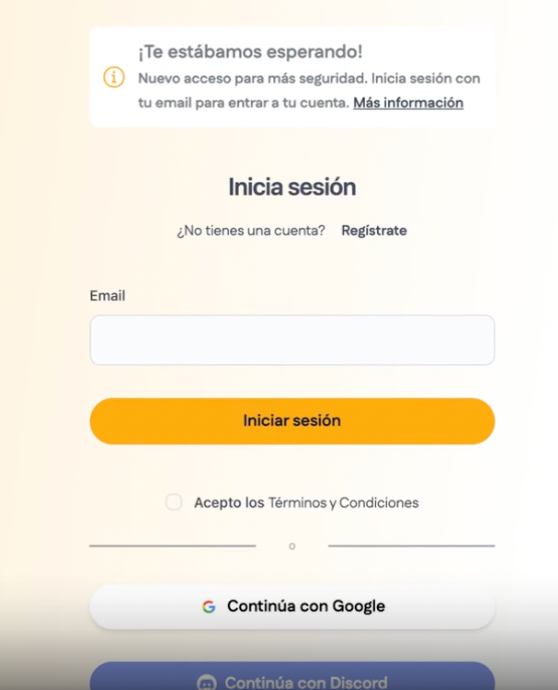
Access app.reental.co
Enter your email or sign in with your Google or Discord account if you have it linked.
Accept the terms and conditions.
Enter the access code that you will receive by email (if you log in with the email).
Option A: Connect an existing Human Wallet
if You already have a Human Wallet created, the process is quick and simple:
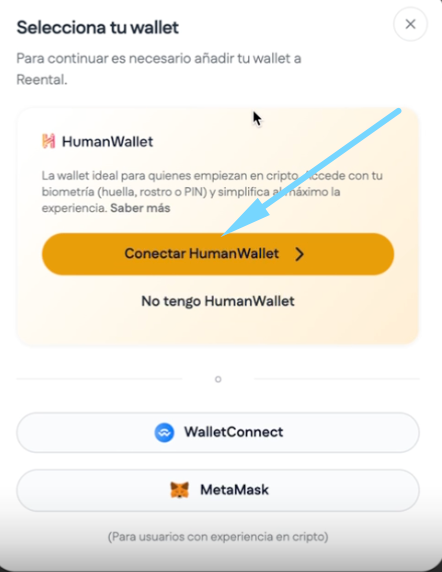
Click on “Connect Human Wallet”.
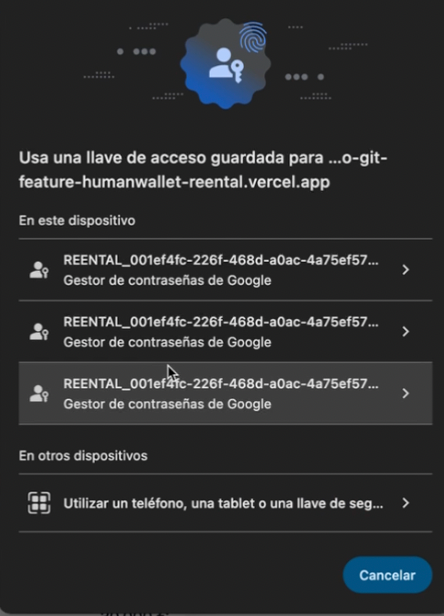
The system will open the access key manager where the previously saved keys are displayed.
Select the account you want to use.
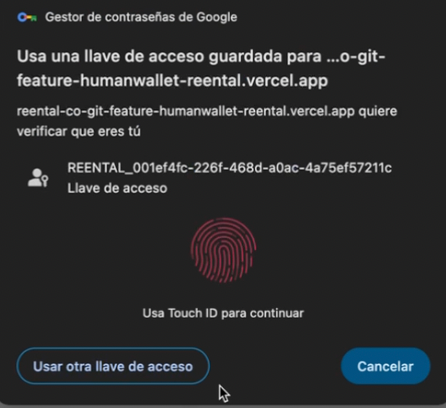
Authenticate with your biometry (fingerprint, facial recognition or device code).
The wallet will be connected automatically.
Device biometric authentication screen
Option B: Create a new Human Wallet (new users)
If this is your first time and You don't have a Human Wallet, follow these steps:
Step 1: Start creating
Click on “Connect wallet”.
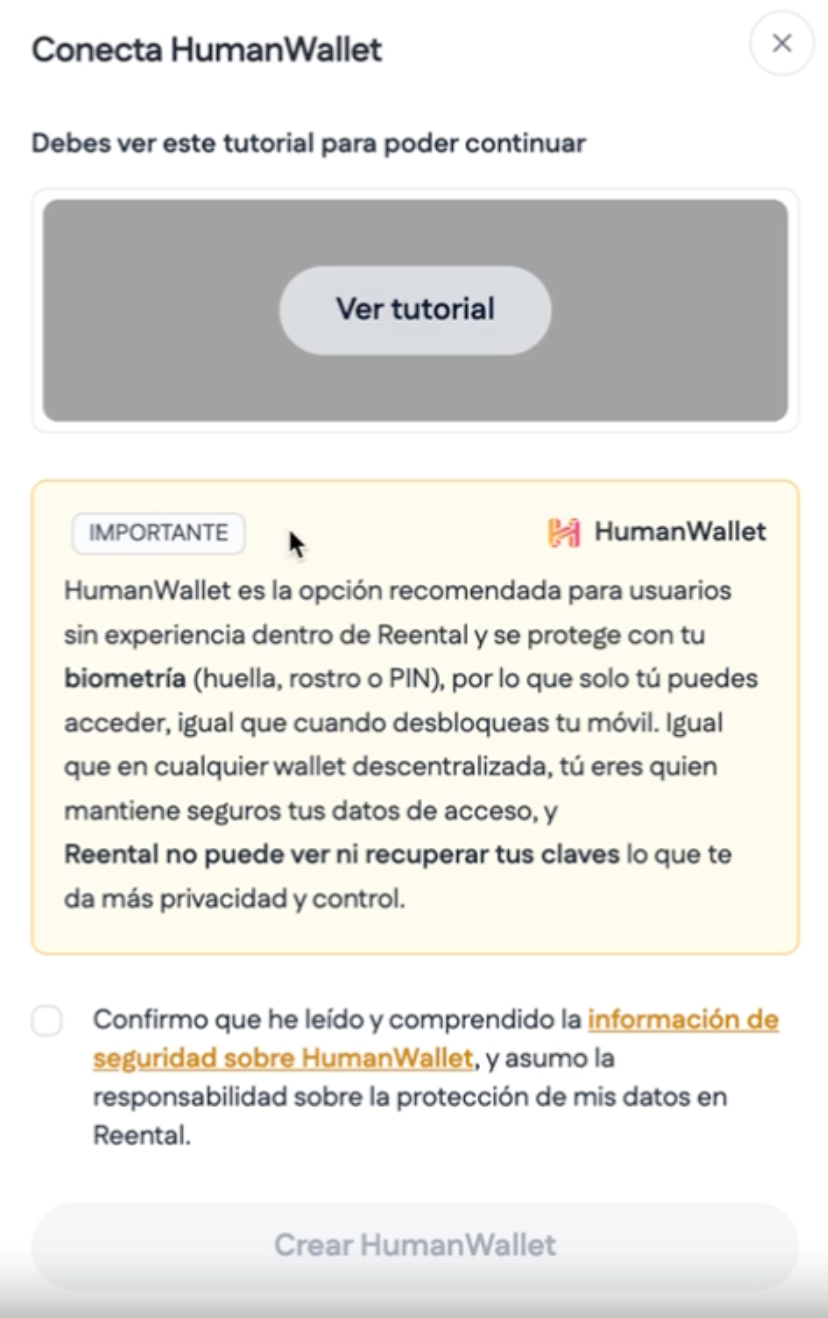
Select the option “I don't have a Human Wallet”.
Read the safety information and confirm to continue with “Create Human Wallet”.
Step 2: Save your access key (Passkey) — VERY IMPORTANT
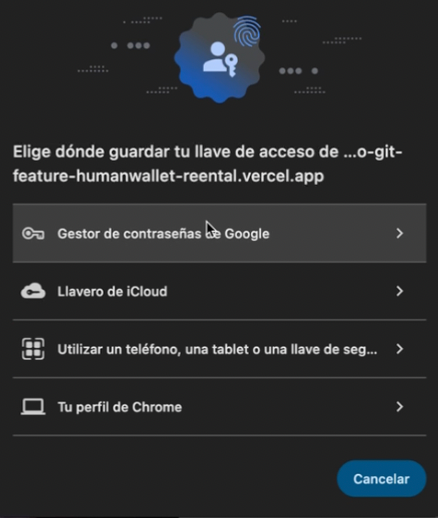
During the process, the system will ask you Where do you want to store your access key (Passkey).
Common options:
Google Password Manager
iCloud keychain (recommended option)
Physical security key
⚠️ Important safety warning We do not recommend storing the key only in the browser's local profile (for example, Chrome local). If you change your browser, delete the profile or the device fails, you could lose access to your wallet.
👉 The safest thing to do is to use a cloud password manager such as iCloud or Google, which allows you to recover access from other devices.
Step 3: Confirmation using biometrics
Once the saving method has been chosen:
The system will ask you to confirm the action using biometry (fingerprint, face, or device method).
This is for create and save the access key securely.
Verification and validation of the wallet
To finish the process:
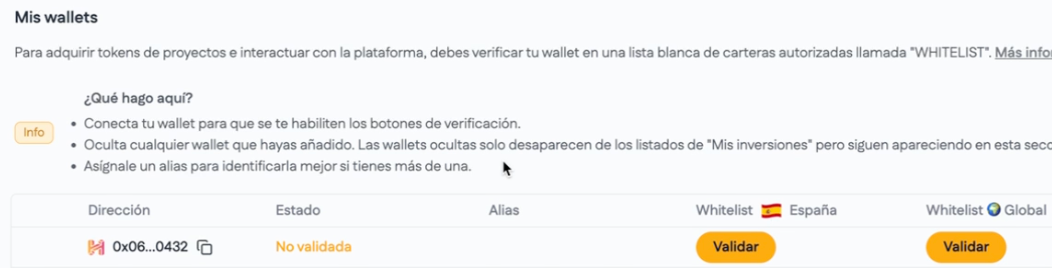
Pulsa “Verify wallet”.
You will see the icon of the Connected Human Wallet.
Pulsa “Validate” to complete the process.
Wallet ready to invest
Once the previous steps have been completed:
Your Human Wallet is properly connected.
Your account is ready to invest.
You can now access projects with Tokens for sale and operate within the Reental ecosystem.
If you don't have crypto or don't know how to get it, you can invest by bank transfer and we buy the tokens for you and send them to your wallet.
Key Safety Information
You Access key is personal and only you can use it.
Reental Don't keep your keys nor can it access your wallet.
Using iCloud or Google to save your Passkey reduces the risk of losing access.
❓ Frequently Asked Questions
Wallet & Security
Is it mandatory to create a wallet to invest?
Yes. A wallet is required to store your tokens and authorize investments on the platform.
Does Reental store my private keys?
No. Your wallet is personal and you always keep full control over your access and private keys.
Can I change my wallet later?
Yes. You can connect other compatible wallets from your profile at any time.
Can I use HumanWallet to access other Reental services?
Not at the moment. HumanWallet can only be used to access app.reental.co.
To use services such as Reental P2P, Reenlever, or dapp.reental.co, you will need to create an external wallet (MetaMask, Rabby, etc.) in order to use all services with the same wallet.
Do I need to hold POL to use HumanWallet?
No, you do not need to hold POL. All gas fees are fully covered by Reental.
What is POL?
POL is the token used to pay network transaction fees.
It works similarly to when you make a bank transfer and pay a fee in your local currency — POL is used to cover that cost on the blockchain network.
What happens if there is an error during the process?
These situations may occur and are reviewed by the technical team.
If your device does not support fingerprint or facial recognition, the passkey will be protected using the device’s security method, usually:
A PIN
A numeric code
Or a system password
It will work the same way as unlocking your computer or mobile phone without biometrics.
Once your Human Wallet has been created, go to the section Real estate to explore projects and invest.
You are leaving the Reental.co platform
You are now stepping into the decentralized world of the RNT Protocol. Here, you can boost your real estate investments with advanced DeFi tools and explore new financial products exclusive to Web3.